- Free forever
- No data collection
- Works offline
- Manifest V3
- No account needed
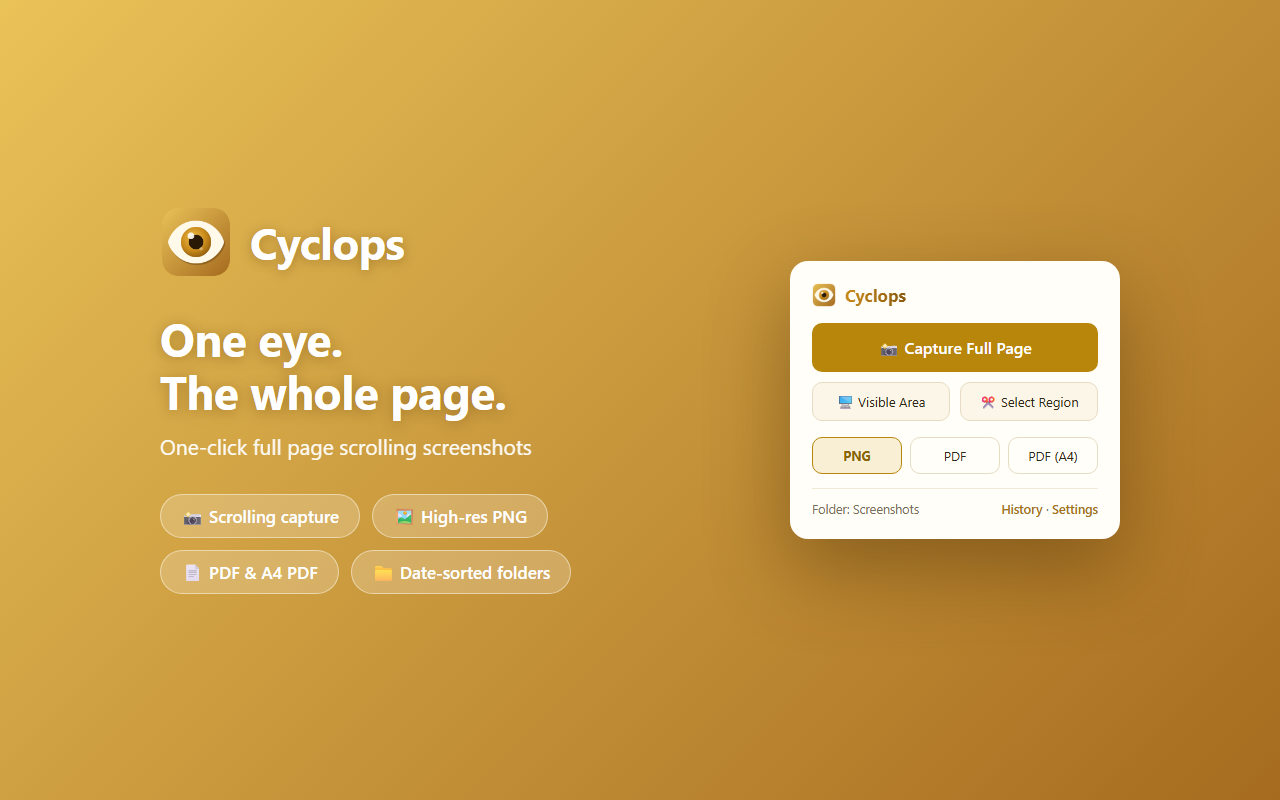
Cyclops captures the entire page (scrolling), the visible area, or a selected region in one click, and saves it as PNG or PDF into a folder you chose — auto-organized into date subfolders. Free. No data collection.
How it works
-
Click the eye
One left click on the toolbar icon — or Alt+Shift+S. Right-click the icon for Visible Area, Select Region, delay and Auto-copy.
-
The page scrolls itself
Cyclops scrolls top to bottom, stitches the frames into one image, and hides sticky headers so they don't repeat.
-
Saved, named, sorted
The file lands in your folder under a date subfolder, named by site and time. Annotate, copy to clipboard, or export as PDF right there.
What it does
One click, whole page
A left click on the toolbar eye captures the full page instantly with your saved settings — no popup in between.
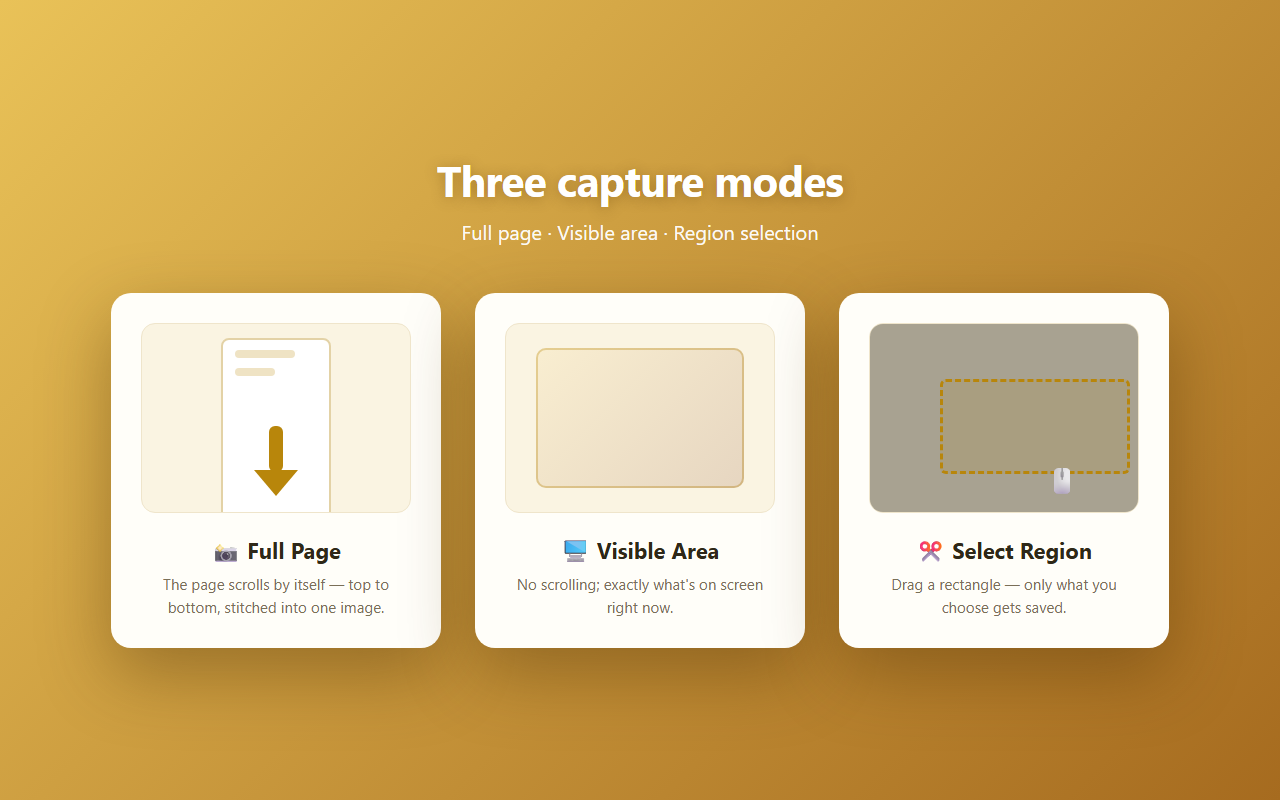
Three capture modes
Full Page (scrolling), Visible Area, and Select Region (drag) — all in the icon's right-click menu, or on Alt+Shift+S / V / A.
Five formats
PNG at device resolution, JPEG and WebP for smaller files, PDF as one long page, or PDF A4 — print-ready and multi-page.
Files that organize themselves
Pick a save folder once; captures land in date subfolders like
2026-08-17/, named example.com_2026-08-17_14-30-25.png.
Annotate before saving
Pen, arrow, rectangle, four colors, undo — the saved file is updated in place.
Clipboard, if you want it
Copy any capture with one click, or turn on Auto-copy and every capture lands on your clipboard the moment it's taken.
History, kept local
Thumbnails of your last 30 captures, stored only on your device; "Open" reads the real file back from your folder.
No repeated headers
Sticky headers are hidden from the second frame on, so long captures don't repeat them down the page.
See it
The tale
In his cave the Cyclops needed no second eye: the one he had took in the whole of whatever stood before it, top to bottom, at a single look. So does this one. Where others squint at a page one screenful at a time, the eye opens once — and the entire page, everything above the fold and every scroll below it, is held whole.
The portrait
Permissions, one by one
Cyclops asks for the minimum Chrome allows for its job — you will never see a "read your data on all sites" warning. Each permission, and exactly why it exists:
activeTab + scripting |
Capture the tab you invoked Cyclops on — only that tab, only when you click or press the shortcut. |
|---|---|
storage |
Remember your format, folder and delay preferences on your device. |
clipboardWrite |
Exists solely for the Auto-copy toggle. Writing only — Cyclops never reads your clipboard. |
contextMenus |
Adds the capture modes and quick settings to the toolbar icon's own right-click menu — nowhere else. |
Nothing is collected or transmitted. No network requests, no analytics, no third-party services. Everything — history previews included — stays on your device. Full privacy policy.
Known limitations
- Browser-internal pages (
chrome://, the Web Store) can't be captured — that's a Chrome restriction, not a bug. - Web apps that scroll inside an inner panel instead of the page (some SPAs) capture the visible area only.
- Pages longer than 40,000 px are cut at that limit (canvas limit).
- Chrome allows at most 2 frame captures per second, so very long pages take a few seconds — progress shows on the badge.
- After a browser restart, Chrome may ask you to re-confirm folder access with one click on your first save. That's a browser rule.
Questions
How do I take a screenshot of an entire page in Chrome?
Install Cyclops, click the eye in your toolbar, and the whole page — including everything below the fold — is captured, stitched, and saved to your folder. Or press Alt+Shift+S.
Can it save the screenshot as a PDF?
Yes — either as one long PDF page, or as print-ready multi-page A4. PDF generation is built in; no external services are involved.
Where do my screenshots go?
Into the folder you picked at setup, auto-organized into date subfolders
like 2026-08-17/. Files are named by site, date and time, so
they sort themselves.
Does Cyclops collect any data?
No. It makes no network requests and connects to no servers. Captures, settings and history never leave your computer. The privacy policy is three paragraphs because there's nothing to disclose.
Can I edit the screenshot after capturing?
Yes — the save page has annotation tools: pen, arrow, rectangle, four colors and undo. The saved file is updated in place, so what you see is what's in your folder.
Does it handle sticky headers and long pages?
Sticky and fixed headers are hidden from the second frame on, so they don't repeat down the capture. Very long pages work up to 40,000 px (a canvas limit) — progress shows on the badge while stitching.
How is this different from Chrome's built-in screenshot?
Chrome's built-in capture (hidden in DevTools) takes several steps and drops the file into Downloads with a generic name. Cyclops is one click, saves into the folder you chose under date subfolders, names files by site and time, and adds annotation, clipboard copy and PDF export.
Is it really free?
Yes, fully — every feature, forever. If it's been useful you can send some wind into the sails on Patreon; it unlocks nothing but gratitude.